
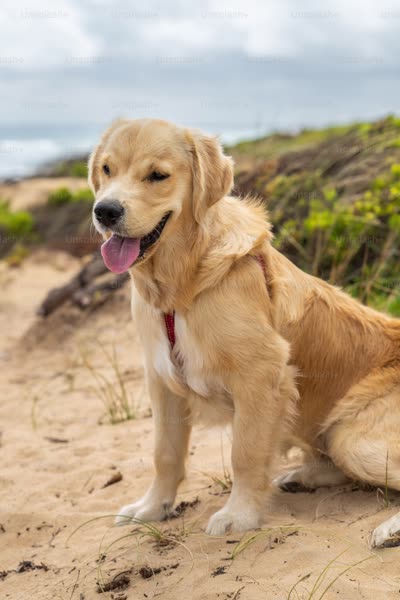
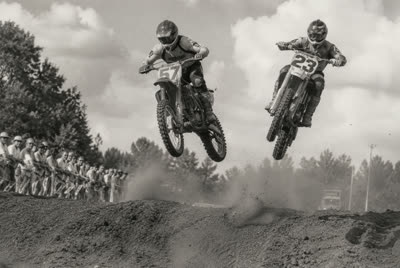
Why animate a still image in 2026
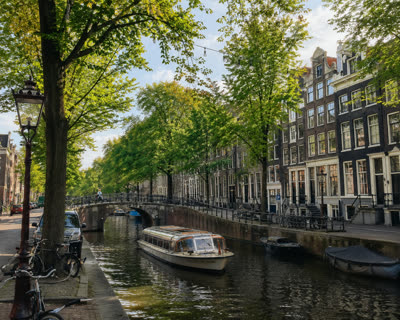
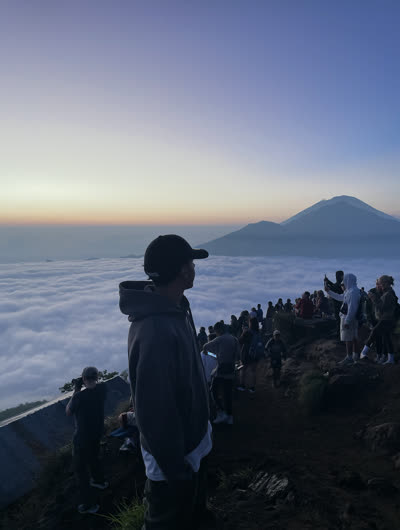
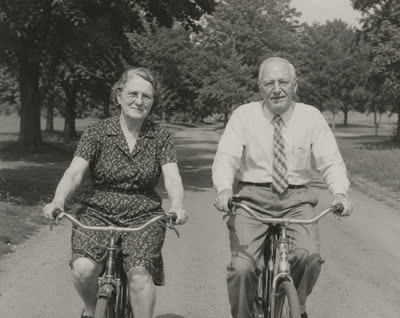
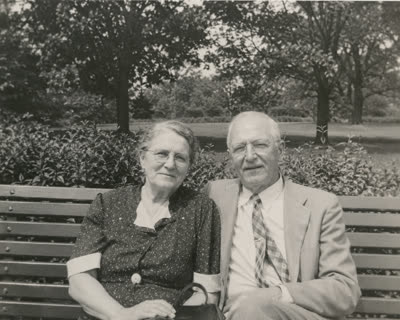
A still photo holds a moment; a short video makes it move, breathe, and hold attention. With AI image-to-video models — Runway, Kling, Veo, Luma, Pika, SeeDance — you can take any image you already have and turn it into a few seconds of believable motion: a portrait that blinks and breathes, a landscape where the clouds drift, a product that slowly rotates, water that flows.
The result is content that stops the scroll. Animated photos outperform static images on every feed — TikTok, Reels, Stories, Shopify galleries — because motion is the only format that interrupts a thumb mid-swipe. The barrier was never the idea; it was knowing how to write the prompt that makes the model animate your actual picture instead of melting it.
How AI image-to-video actually works
Image-to-video is different from text-to-video. Your uploaded image becomes the literal first frame, and the model generates the seconds that follow. That means the prompt must respect everything already in the frame — the subject, the colors, the lighting, the composition — and describe motion that is physically plausible for that exact picture. A prompt that ignores the image, or asks for too many competing motions, is what produces the warping and morphing that ruin most AI animations.
This tool is built for that. It reads your image, locks onto what is actually there, and writes a prompt around one clean primary motion — with safeguards against identity drift baked in.
What makes a great image-to-video prompt
AI video generators are brutally sensitive to prompt quality. The difference between a clip that looks like your photo come to life and one that melts into nonsense is entirely in the prompt. Four things matter most:
One clear primary motion
The single biggest cause of broken AI animation is asking for too much at once. A great prompt commits to one primary move — a slow push-in, hair drifting in the wind, water flowing — plus at most one or two subtle ambient motions. Competing camera moves and subject motions fight each other and break the frame.
Ground every detail in the image
Because your photo is the first frame, the prompt must describe the real subject, colors, and lighting — never invent new objects or backgrounds. Images with separated foreground and background animate especially well because the model can move the planes independently for believable parallax.
Specify the camera, not just 'animate'
Vague verbs like 'move' or 'animate' produce mush. A good prompt names the exact camera move and speed (a slow 5-second dolly-in, a static lock-off with parallax, a 90° orbit), the lens feel, and how the motion eases. Concrete motion language is what gives you a usable clip on the first try.
Protect identity with a negative prompt
The thing that makes AI animation look broken — morphing faces, warping edges, extra limbs, identity drift — is preventable. Every prompt this tool writes includes a tuned negative prompt that blocks those failure modes so your person stays the same person and your product stays the same product.
Which images animate best
Animates cleanly
- Portraits — blink, breathe, hair and clothing drift
- Landscapes with depth — drifting clouds, parallax
- Products on a clean background — slow orbit, rack focus
- Water, fire, food — flow, flicker, rising steam
- Clear, higher-resolution images
Fights the model
- ✕ Tiny, blurry, or heavily compressed images
- ✕ Cluttered scenes with no clear subject
- ✕ Dense crowds of faces (identity drift risk)
- ✕ Asking for many motions at once
- ✕ Heavy text or fine print that must stay legible
Free vs paid: ways to turn an image into video
The economics of animating a photo have changed completely. Here is how the options compare.
| Method | Cost | Turnaround | Quality |
|---|---|---|---|
| Motion-graphics designer | $80–$400 | 2–5 days | High, but slow and costly |
| After Effects yourself | Subscription + hours | Hours per clip | High if you know the tool |
| Animate with no prompt | Free | Minutes | Generic — morphing, drift |
| Image-to-video prompt (this tool) | Free | 30 seconds | Clean motion, your real image |
How to animate an image from a photo
From a still photo to a short animated clip takes four steps (for more on writing prompts, see the AI video blog):
- Generate the prompt (30 seconds). Upload one image and describe the motion you want — or leave it blank and let the AI choose the most natural movement. You get a complete image-to-video prompt.
- Generate the video (1–3 minutes). Paste the prompt into Runway, Kling, or Veo and set your image as the starting frame so the model animates your actual picture. Generate a 3–5 second clip.
- The aspect ratio already matches. The prompt picks 9:16, 1:1, or 16:9 to match your image so the animation isn't cropped — no manual setup needed.
- Publish or refine. Post the clip to TikTok, Reels, or Stories, or regenerate with a different motion to explore variations from the same photo.
What the free image to video generator produces
Upload your image and motion description — you get three outputs, no signup, no credit card:
- A detailed image-to-video prompt — subject, the exact camera and subject motion, lighting matched to your photo, mood, color palette, and a tuned negative prompt against morphing and identity drift. Formatted for Runway, Kling, Veo, SeeDance, Luma, and Pika, with the aspect ratio matched to your image.
- A first-frame reference description — a faithful description of your uploaded image as the starting keyframe, so you can reproduce or refine it.
- An AI video generator recommendation — which model fits your specific motion best (Kling for organic motion, Runway for controlled camera moves, Veo for landscapes and atmosphere) and why.
Runway, Kling, Google Veo, Luma, Pika, and SeeDance are trademarks of their respective owners. This tool is not affiliated with or endorsed by any model or platform mentioned.