
Why the transition is the part everyone remembers
Anyone can cut two clips together. What makes an edit feel professional is the few seconds in between — the whip pan that hides the cut, the match cut where a round orange becomes the sun, the morph that turns one face into another. Those moments are what get rewatched and shared, and they are exactly what AI video models are now good at, if you give them the right two frames and the right prompt.
The barrier was never the idea; it was knowing how to describe the bridge so the model interpolates cleanly between your two clips instead of flickering, ghosting, or warping. That is the whole job of this tool.
How AI video transitions actually work
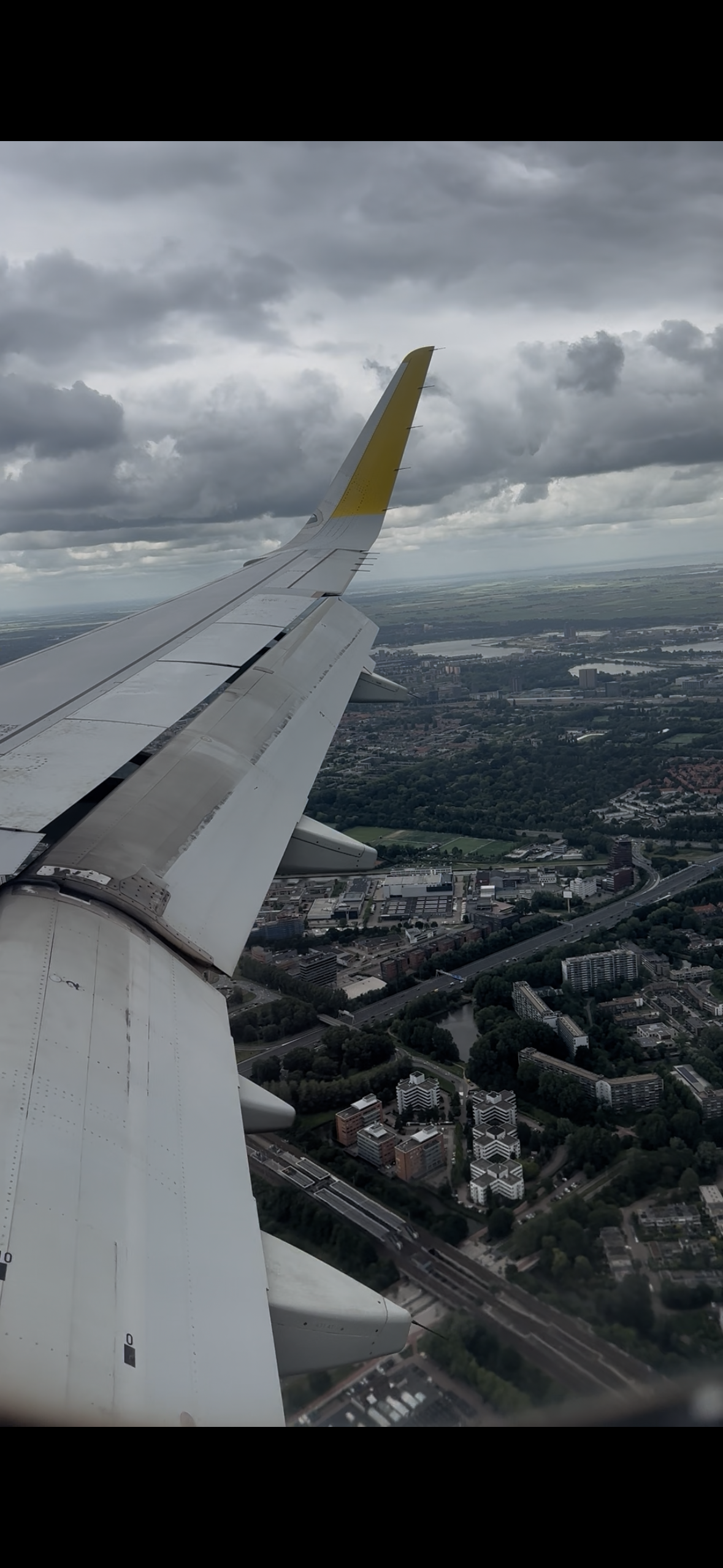
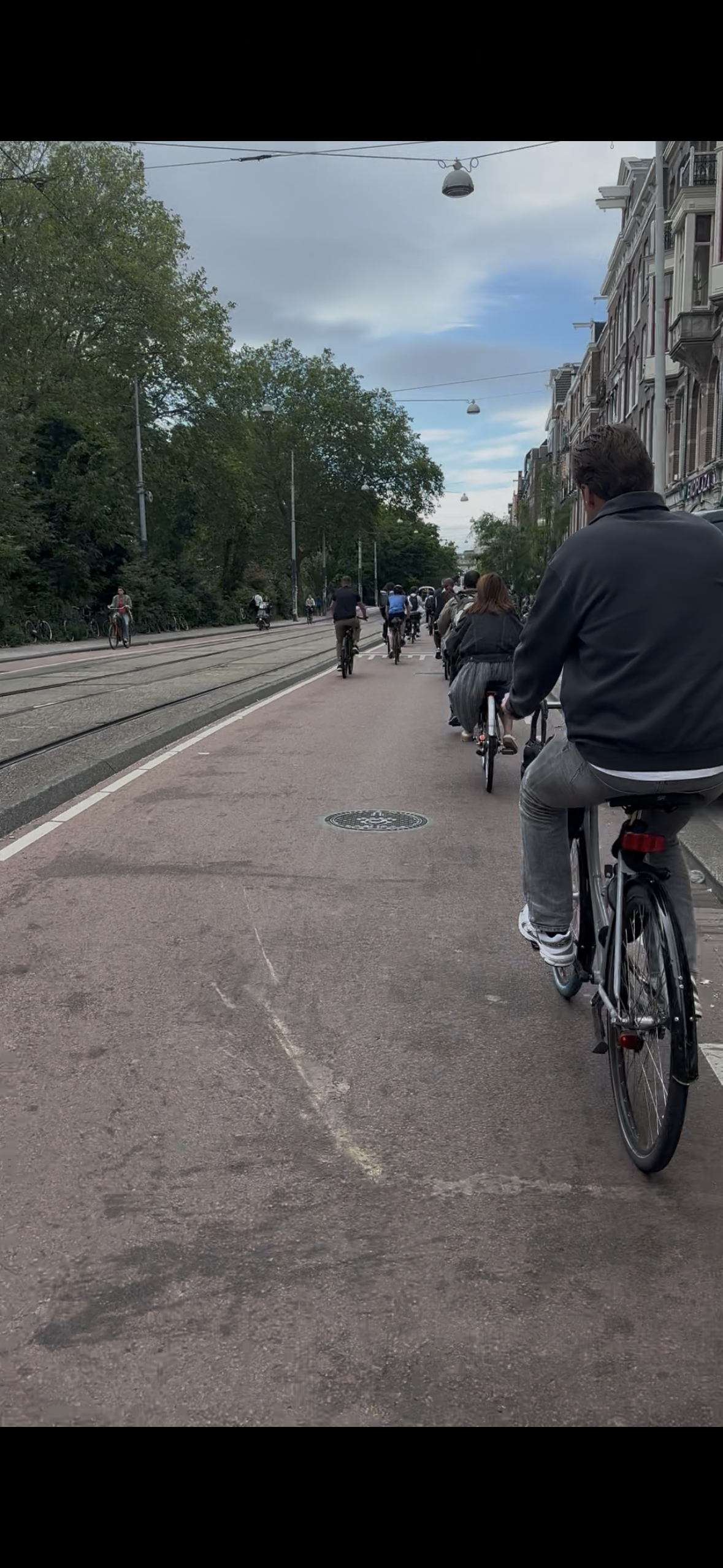
A transition is keyframe-to-keyframe video. You give the model two fixed anchors — a start frame (the last frame of your first clip) and an end frame (the first frame of your second clip) — and the model generates the seconds that travel from one to the other. The generated clip begins exactly on your start frame and ends exactly on your end frame, so it slots between your two clips with no visible seam.
Because both frames are fixed, the prompt has to respect everything in both images and describe motion that is plausible given where it starts and where it must land. A prompt that ignores one of the frames, or asks for several competing transition effects at once, is what produces the double-exposure ghosting and melting edges that ruin most AI transitions.
What makes a great transition prompt
The difference between a seamless transition and a flickering mess is entirely in the prompt. Four things matter most:
Find the element that links the two frames
The best transitions hide inside something the two frames share — a shape, a color, a line, a position, or a direction of motion. A round object that lines up with another round object becomes a match cut; a movement that carries through becomes a seamless camera move. Naming that shared element is what makes a transition feel intentional rather than random.
Commit to one transition mechanism
The single biggest cause of broken AI transitions is asking for too much at once. A great prompt picks one primary mechanism — a whip pan, a match cut, a morph, an element wipe — and describes its direction, speed, and easing precisely. Competing effects fight each other and break the interpolation between your frames.
Ground every detail in both frames
Because both images are fixed anchors, the prompt must describe the real subjects, colors, and lighting in each — and bridge the lighting so it doesn't flash mid-transition — never inventing new elements. Frames that share orientation and a clear linking element bridge far more cleanly than two unrelated scenes.
Protect against ghosting with a negative prompt
The things that make AI transitions look broken — flicker, double-exposure ghosting, warping faces, melting edges, harsh exposure jumps — are preventable. Every prompt this tool writes includes a tuned negative prompt that blocks those failure modes so the bridge between your clips stays clean.
Which frames bridge best
Bridges cleanly
- Frames that share a shape or round object (match cut)
- The same subject in both frames (morph)
- A shared motion direction (whip pan, push-through)
- Matching orientation and similar framing
- Clear, higher-resolution stills
Fights the model
- ✕ Two totally unrelated scenes with nothing in common
- ✕ Mismatched orientation (one portrait, one landscape)
- ✕ Tiny, blurry, or heavily compressed frames
- ✕ Asking for several transition effects at once
- ✕ Dense crowds of faces (identity drift risk)
How to make a transition between two clips
From two frames to a finished transition takes four steps (for more on writing prompts, see the AI video blog):
- Grab your two frames. Export the last frame of your first clip and the first frame of your second clip — most editors and phones let you screenshot a paused frame.
- Generate the prompt (30 seconds). Upload your start frame and end frame and describe the transition — or leave it blank and let the AI pick the cleanest bridge for your two frames.
- Generate the video (1–3 minutes). Paste the prompt into Kling, Runway, or Luma and set your start frame as the first image and your end frame as the last image, so the model bridges your real frames.
- Drop it between your clips. The transition starts and ends on your two frames, so it slots straight into your edit with no visible seam.
What the free transition generator produces
Upload your two frames and a description — you get three outputs, no signup, no credit card:
- A detailed transition prompt — the start and end frames described as anchors, the one transition mechanism with its direction, speed, and easing, lighting bridged across the cut, mood, color palette, and a tuned negative prompt against flicker and ghosting. Formatted for Kling, Runway, Luma, Veo, and Pika, with the aspect ratio matched to your frames.
- A start-frame reference description — a faithful description of your opening keyframe so you can reproduce or refine it.
- A model recommendation — which generator best fits your specific transition (Kling for morphs and FX, Runway for camera-driven match cuts, Luma for smooth dissolves) and why.
Kling, Runway, Google Veo, Luma, and Pika are trademarks of their respective owners. This tool is not affiliated with or endorsed by any model or platform mentioned.